In This Guide
What Is JLR TOPIx?
JLR TOPIx (Technical Online Publisher Information eXchange) is Jaguar Land Rover's official online technical information and diagnostic support platform. It is the same system used by authorized dealerships worldwide, now available to independent workshops, specialist garages, and advanced DIY enthusiasts through licensed subscriptions.
TOPIx provides a comprehensive, always-updated database of technical information covering every Jaguar and Land Rover model from approximately 2005 onwards. The portal is available 24/7, making it a convenient and reliable resource for JLR enthusiasts and professionals around the world.
Workshop Manuals
Factory-grade service procedures with step-by-step instructions and torque specifications.
Wiring Diagrams
Complete electrical schematics for troubleshooting complex circuits and modules.
CCF Editing
Car Configuration File editing to enable hidden features and retrofit options.
Technical Bulletins
Latest known issues, fixes, and software updates direct from JLR engineering.
Parts Catalogue
Locate and order correct OEM parts with exploded diagrams and part numbers.
Live Diagnostics
Cloud-connected diagnostic sessions when paired with a JLR DOIP VCI interface.
Key Fact: TOPIx Cloud has officially replaced Pathfinder as the primary online resource for Land Rover technical information and support. All modern JLR diagnostics now flow through the TOPIx cloud infrastructure.
Why JLR TOPIx Is Essential for Diagnostics
Using JLR TOPIx is critical when servicing Jaguar and Land Rover vehicles due to the complexity of their electronic architectures. Modern JLR vehicles rely on dozens of interconnected control modules, secure communication gateways, and encrypted configuration files that cannot be accessed without factory-grade tools.
Independent shops can stay competitive and provide dealership-level repair services by utilizing OEM-grade information. Integrating JLR TOPIx with tools like the Pathfinder and SDD software systems allows for accurate diagnostics, programming, and repairs.
Without TOPIx, technicians are forced to rely on outdated manuals, third-party forums, or guesswork — all of which increase repair time, risk incorrect procedures, and can lead to expensive module damage. Investing in TOPIx pays for itself after just a few complex diagnostic jobs.

System Requirements & Preparation
Before installing TOPIx, ensure your workstation meets the following minimum requirements. Skipping any of these steps will result in login failures or software malfunctions.
| Component | Requirement | Notes |
|---|---|---|
| Operating System | Windows 10 / Windows 11 | macOS and Linux are not supported |
| Browser | Google Chrome (Default) | Must be set as default browser. No exceptions. |
| Antivirus | Real-time protection OFF | Add JLR-ARC folder to trust list |
| Firewall | Windows Defender OFF | Or allow TOPIx through firewall rules |
| VCI Interface | JLR DOIP VCI | Third-party DOIP VCI will not connect |
| PC Age | Less than 10 years old | Older computers may experience timeouts |
| Internet | Stable broadband | VPN recommended for poor connectivity regions |
Critical Warning: If your default browser is changed to anything other than Google Chrome, you will be unable to log in to TOPIx. Reset Chrome as the default browser before proceeding. Third-party DOIP VCI devices from other manufacturers cannot be used to connect to TOPIx cloud — you must use the JLR DOIP VCI.
Step 1: Prepare Your PC for TOPIx Installation
-
Verify Windows Version
PressWin + R, typewinver, and press Enter. Confirm you are running Windows 10 or Windows 11. If not, TOPIx will not function correctly. -
Set Google Chrome as Default Browser
Open Chrome Settings → Default Browser → Set as Default. If Chrome was previously replaced by another browser, you must manually reset Chrome as the default. Navigate to Windows Settings → Apps → Default Apps → Web Browser → Select Google Chrome. -
Disable Windows Defender Real-Time Protection
Open Windows Security → Virus & Threat Protection → Manage Settings → Turn off "Real-time protection." This is necessary because the JLR-ARC license module is frequently flagged as a false positive. -
Turn Off Windows Defender Firewall
Open Control Panel → Windows Defender Firewall → Turn Windows Defender Firewall on or off → Select "Turn off" for both private and public networks. Alternatively, add TOPIx-related software to the allowed apps list. -
Configure Antivirus Trust List
If you use a third-party antivirus (Norton, McAfee, Kaspersky, etc.), disable real-time protection and add the following folders to the exclusion/trust list:C:\Program Files (x86)\MDG\JLR-ARCC:\Program Files (x86)\MDG\JLR-ARC\cherry-win.exe
Step 2: Install JLR-ARC Software & Activate License
The JLR-ARC (Access Rights Controller) is the authentication gateway that validates your TOPIx subscription license on your local machine. Without a valid JLR-ARC license, you cannot access the TOPIx cloud portal.
-
Download the JLR-ARC Installer
After purchasing your TOPIx subscription from JLR Coding, download the1st JLR-ARC Installer-v8from your customer portal or the email we sent you. -
Run the Installer
Right-click the installer and select "Run as administrator." Follow the on-screen prompts to complete installation. The default installation path isC:\Program Files (x86)\MDG\JLR-ARC. -
Copy Your Hardware ID
Launch the JLR-ARC application after installation. Click the "Copy Hardware ID" button. This unique identifier is tied to your PC's hardware and cannot be transferred to another machine. -
Request Your License Key
Send the copied Hardware ID to JLR Coding support via email or WhatsApp. Our team will generate and return your activated license key within 24 hours (usually within 2-4 hours during business hours). -
Save & Validate License
Paste the provided license key into the JLR-ARC application and click "Save License." The status indicator should turn green, confirming your license is valid and active.
Antivirus Alert: The file cherry-win.exe inside the JLR-ARC folder is the license heartbeat module. If your antivirus quarantines this file, TOPIx will disconnect mid-session. If accidentally deleted, restore the file from your antivirus vault or re-run the JLR-ARC installer.
Step 3: Install JLR DOIP Driver
The JLR DOIP driver establishes the communication layer between your PC and the JLR DOIP VCI hardware interface. This driver is mandatory for all live diagnostic sessions.
-
Download the JLR DOIP Driver
Install the JLR DOIP driver package provided with your TOPIx subscription or JLR DOIP VCI purchase. -
Connect Your VCI
Plug the JLR DOIP VCI into your vehicle's OBD-II port and connect the USB cable to your PC. Windows should detect the device and load the driver automatically. -
VCI Manager Note
The VCI manager software will install alongside the driver. Do not click the "Connect" button inside the VCI manager. Connection is handled automatically by the TOPIx Diagnostic Device Agent when you start a session.
Step 4: Install TOPIx Diagnostic Software
The TOPIx Diagnostic Device Agent is the final software layer that bridges your local PC to the Jaguar Land Rover cloud infrastructure. It manages secure authentication, session handling, and data streaming.
-
Download the TOPIx Agent Installer
Install the3rd TOPIx Diagnostic Device Agent installer V82(or the latest version provided by JLR Coding). This is a mandatory component. -
Run as Administrator
Right-click the installer and select "Run as administrator." Accept all default installation paths unless you have a specific reason to change them. -
Verify Installation
After installation completes, you should see the TOPIx Diagnostic Device Agent icon in your system tray. If the installation fails, restart your PC and run the installer again with administrator privileges. -
Restart Your Computer
A full restart is recommended after all three software components (JLR-ARC, DOIP Driver, TOPIx Agent) are installed. This ensures all background services start correctly.
Troubleshooting Tip: If TOPIx does not start smoothly after installation, try restarting your computer. If your network service is poor or you are unable to log in to TOPIx, try using a VPN software connected to a UK or US server.
Step 5: Login to TOPIx & Select Your Vehicle
With all software installed and your license activated, you are ready to access the full JLR TOPIx cloud platform. Here is the standard workflow for every diagnostic session:
-
Login to the TOPIx Website
Open Google Chrome and navigate to the TOPIx portal. Log in using the account credentials provided by JLR Coding after your subscription purchase. -
Select Vehicle Model & Year
From the dashboard, select the exact vehicle model and model year you are working on. You can also search by VIN for the most accurate documentation match. -
Navigate to Workshop Manuals
Go to the "Workshop Manuals" section and select the appropriate manual for your specific task — whether it is engine repair, transmission service, electrical diagnostics, or bodywork. -
Follow Factory Procedures
Use the instructions, diagrams, and torque specifications provided in the manual to diagnose and repair the vehicle accurately. All content is dealer-grade and updated in real time. -
Check Technical Bulletins
Always visit the "Technical Bulletins" section before starting major work. This contains the latest known issues, factory recalls, and approved fixes for your specific vehicle. -
Use the Parts Catalogue
When replacement parts are needed, use the "Parts Catalogue" section to locate correct OEM part numbers, view exploded diagrams, and verify compatibility. -
Access Wiring Diagrams
For electrical faults, navigate to the "Wiring Diagrams" section. These are interactive, searchable, and far more detailed than any aftermarket schematic available.
How to Use TOPIx Features for Daily Workshop Tasks
Once logged in, TOPIx is organized into logical modules that mirror the workflow of a dealership service bay. Here is how professional technicians use each module daily:
Workshop Manuals
The Workshop Manuals module is the heart of TOPIx. It contains every service procedure Jaguar Land Rover has published, organized by vehicle system (Engine, Transmission, Chassis, Electrical, Body). Each procedure includes:
- Detailed step-by-step instructions with factory photographs
- Torque specifications in Newton-meters and pound-feet
- Required special tools and part numbers
- Safety warnings and critical precautions
- Related technical bulletins and superseded procedures
Technical Bulletins
Technical Bulletins (TBs) are mandatory reading for any competent JLR technician. These are official communications from JLR Engineering that document:
- Known faults and their root causes
- Revised repair procedures that supersede workshop manuals
- Software update requirements for specific modules
- Parts quality issues and revised part numbers
- Campaign and recall information
CCF (Car Configuration File) Editing
CCF editing is one of the most powerful features of TOPIx when paired with Pathfinder or SDD. The CCF is a master configuration file that tells every control module on the vehicle what features are enabled, what hardware is installed, and what market the vehicle is configured for. Through TOPIx, you can:
- Enable hidden features (ACC, Dynamic Mode, Terrain Response 2 Auto, etc.)
- Retrofit hardware upgrades (displays, audio systems, cameras)
- Correct configuration errors after module replacement
- Update market-specific settings for import/export vehicles
Important: CCF editing requires both an active TOPIx subscription and a compatible diagnostic interface (JLR DOIP VCI). Always back up the original CCF before making changes. JLR Coding provides technical support for all CCF editing procedures.

Common Issues Diagnosed with JLR TOPIx
JLR TOPIx is a powerful tool that can diagnose and guide repair for a wide range of issues in Jaguar and Land Rover vehicles. Some of the most common problems diagnosed using TOPIx include:
Engine Faults
DTC analysis, injector coding, timing procedures, and ECU reflashing guidance.
Transmission Issues
Adaptive reset, clutch learn, TCM programming, and valve body procedures.
Electrical Problems
Wiring diagrams, module communication faults, and CAN bus diagnostics.
Cooling System
Bleeding procedures, thermostat testing, and electric pump calibration.
Brake & Suspension
ABS bleeding, air suspension calibration, and EPB service mode.
Infotainment
IMC updates, CarPlay activation, map updates, and Pivi Pro configuration.
With TOPIx, you can quickly identify the root cause of these problems and take the necessary steps to fix them. By using TOPIx regularly, you can ensure that your JLR vehicle is always in top condition and running smoothly.
Required Hardware: JLR DOIP VCI & Diagnostic Interface
TOPIx is a web-based platform for technical information, but to perform live diagnostics, programming, and CCF editing, you need a JLR-approved diagnostic interface. Third-party generic OBD-II readers will not communicate with JLR's secure DoIP (Diagnostics over Internet Protocol) architecture.
| Interface | Protocol | Vehicle Coverage | Required For |
|---|---|---|---|
| JLR DOIP VCI | DoIP + CAN | 2017+ JLR Models | Pathfinder, TOPIx Live, CCF Edit |
| SX-TOOL | DoIP + CAN | 2005+ JLR Models | Pathfinder, SDD, CCF, IVS Flash |
| SX-CAN | CAN Bus | 2005-2017 JLR Models | SDD, CCF Editing, Basic Diagnostics |
| JET-PRO | ENET + DoIP | 2017+ JLR Models | Feature Activation, Coding Scripts |
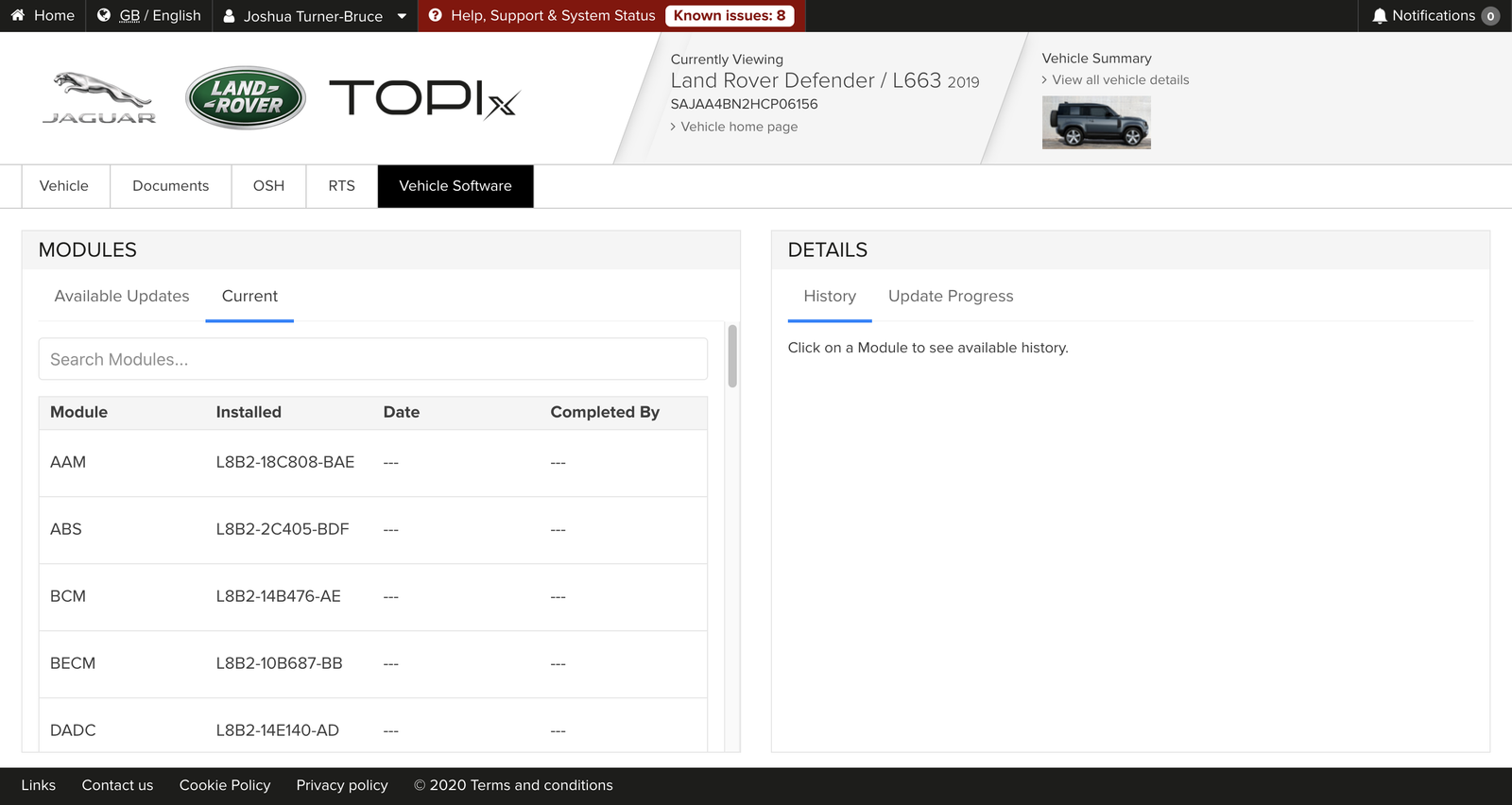
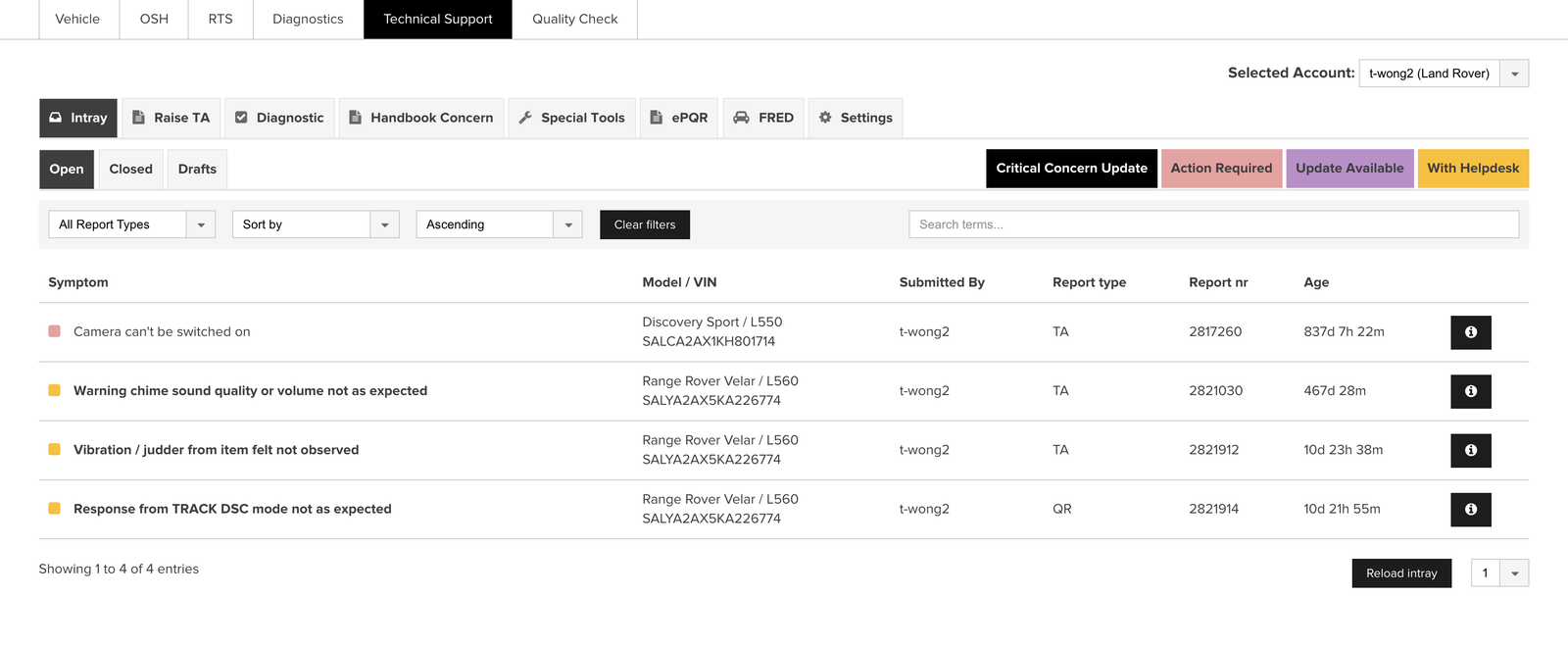
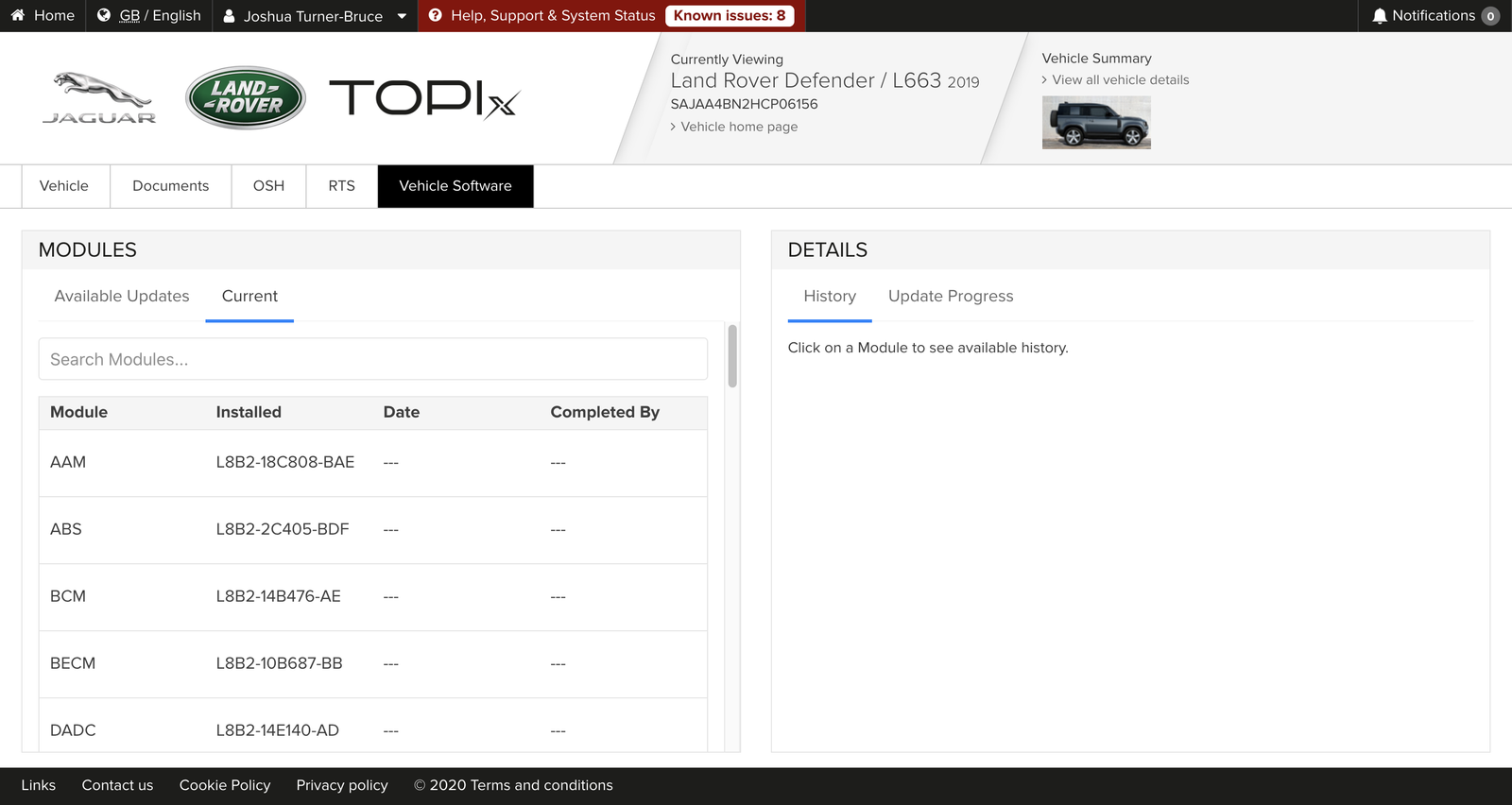
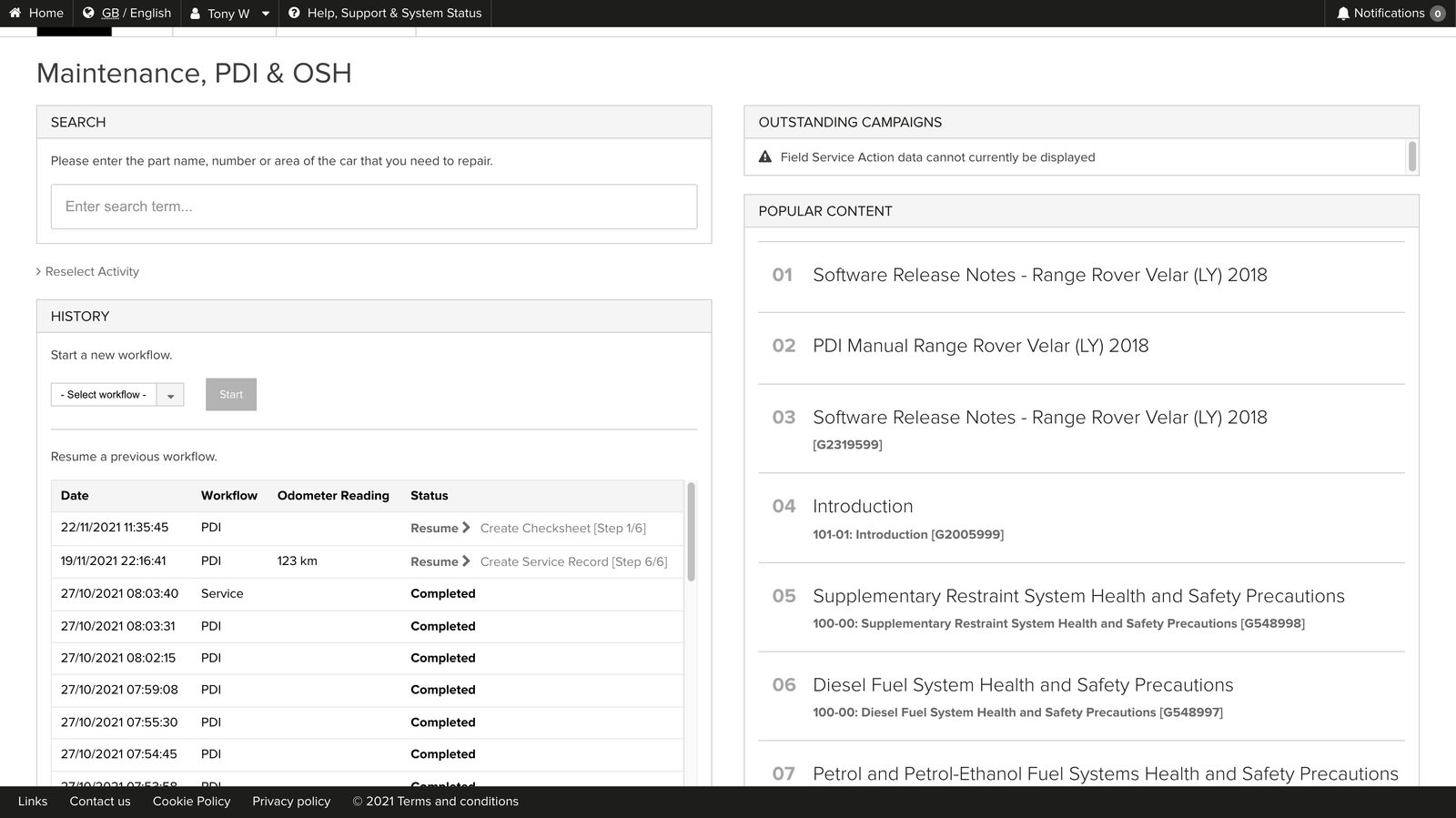
TOPIx Workshop Workflow Screenshots
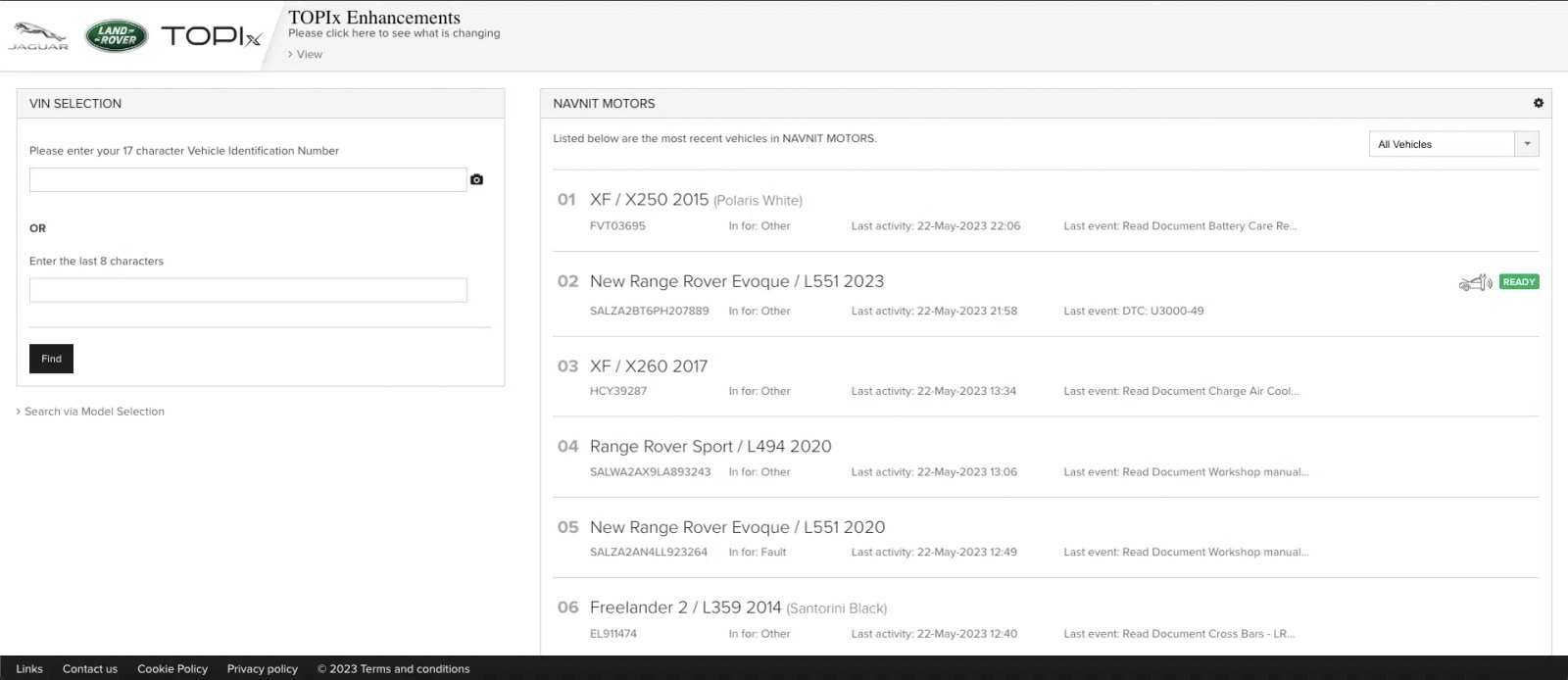
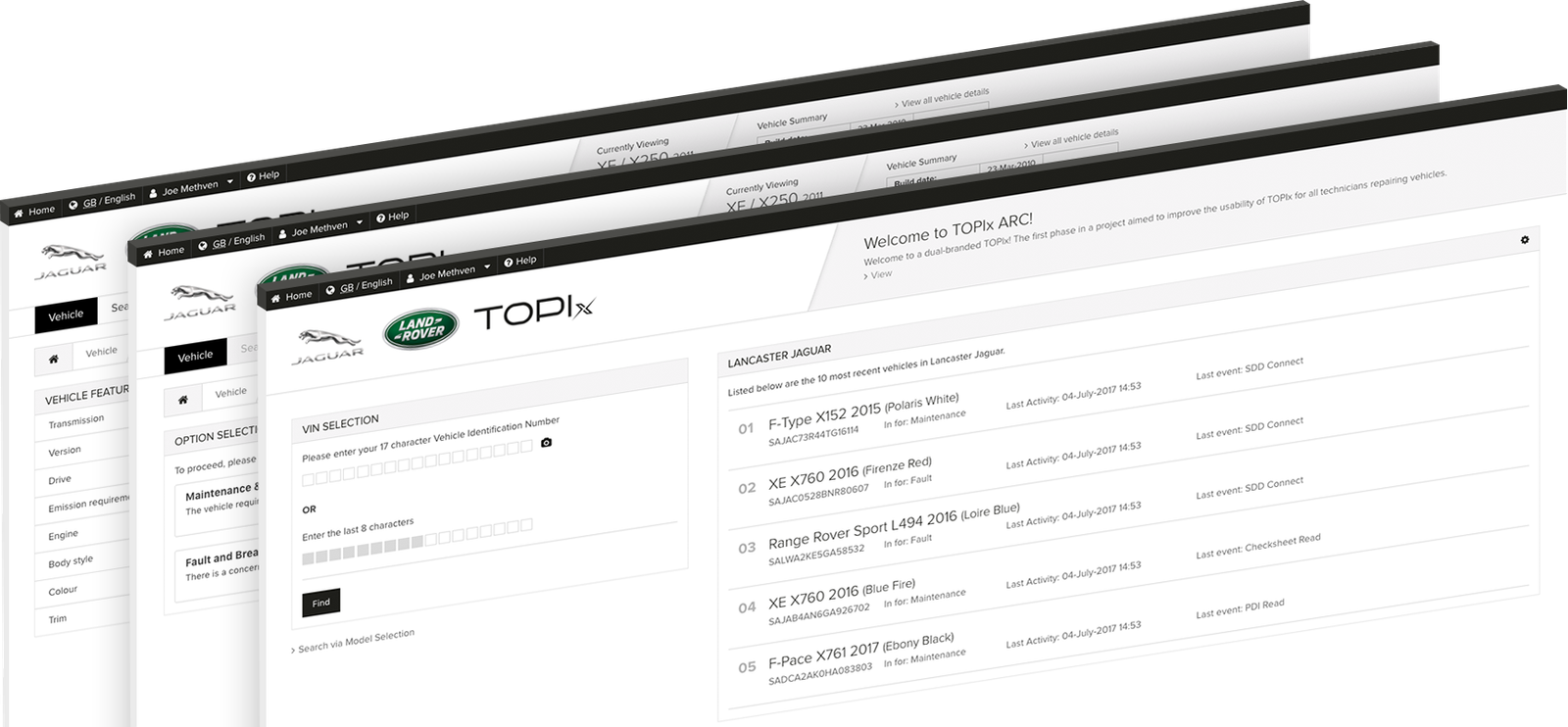
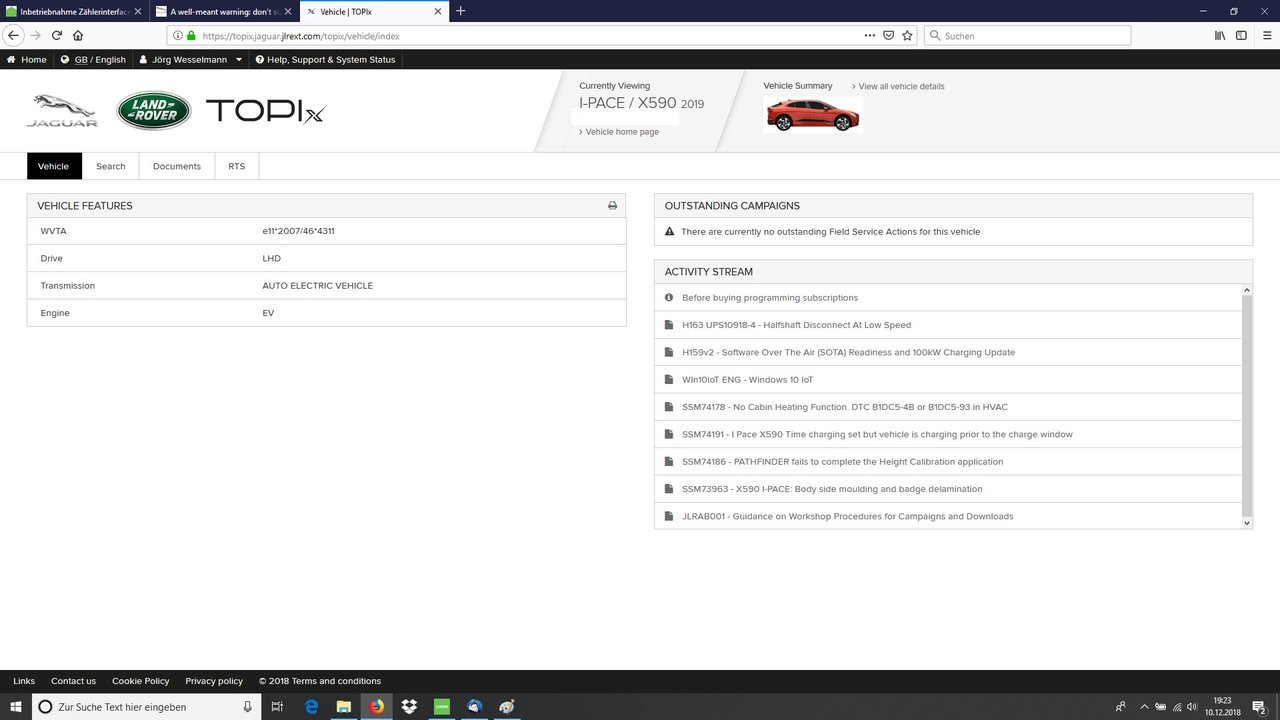
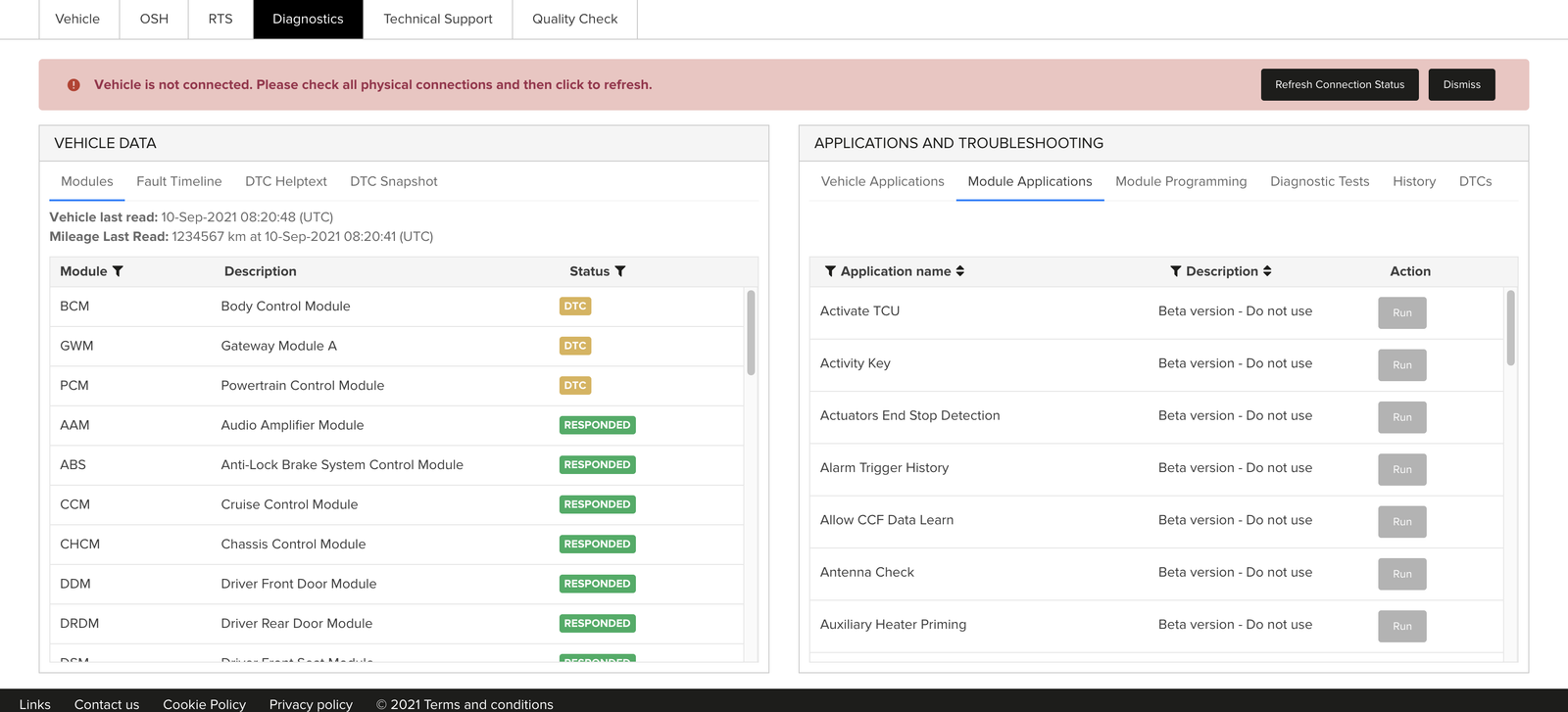
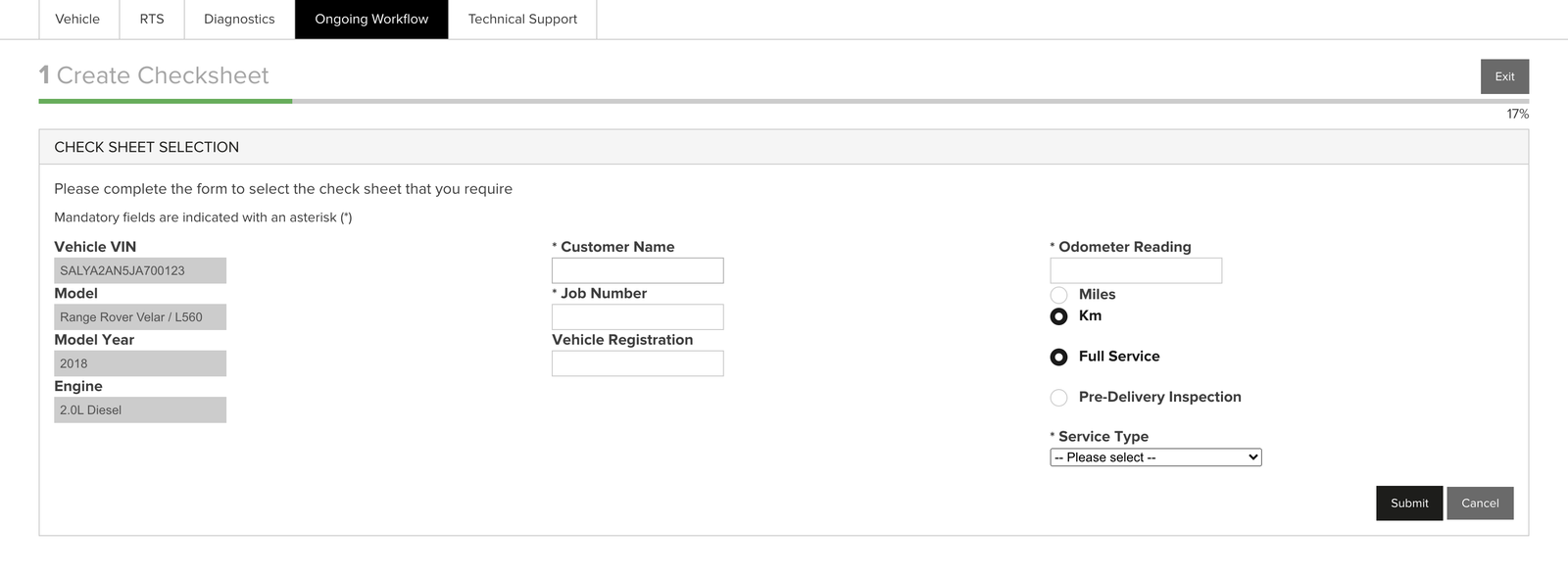
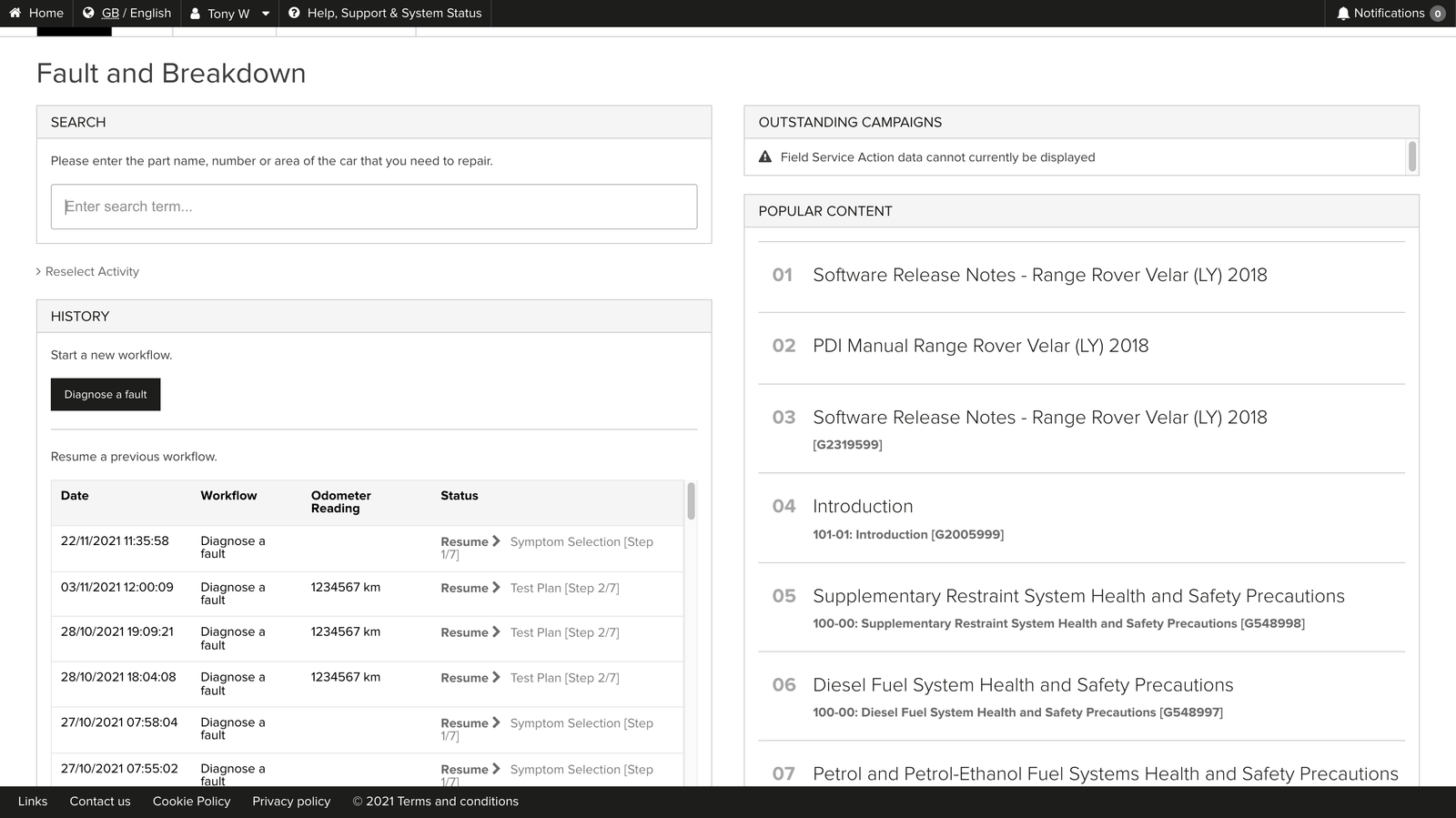
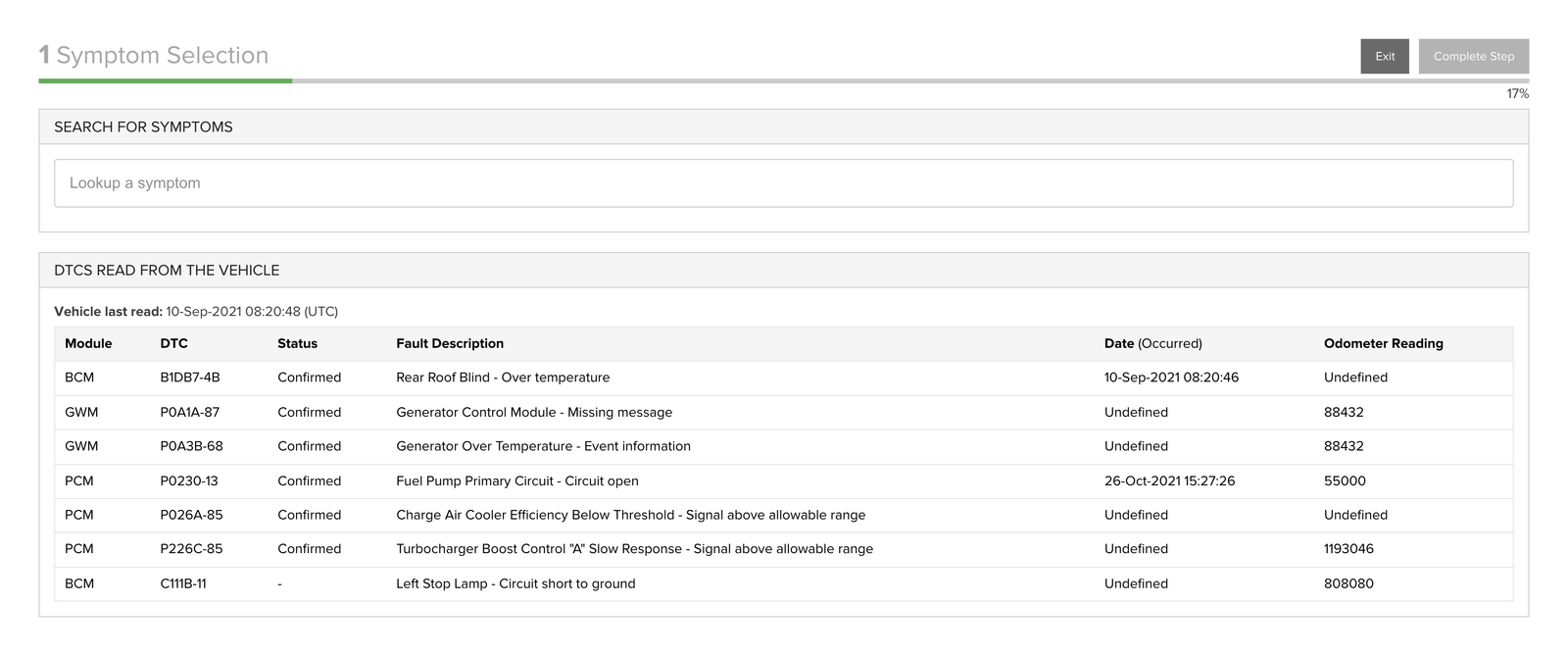
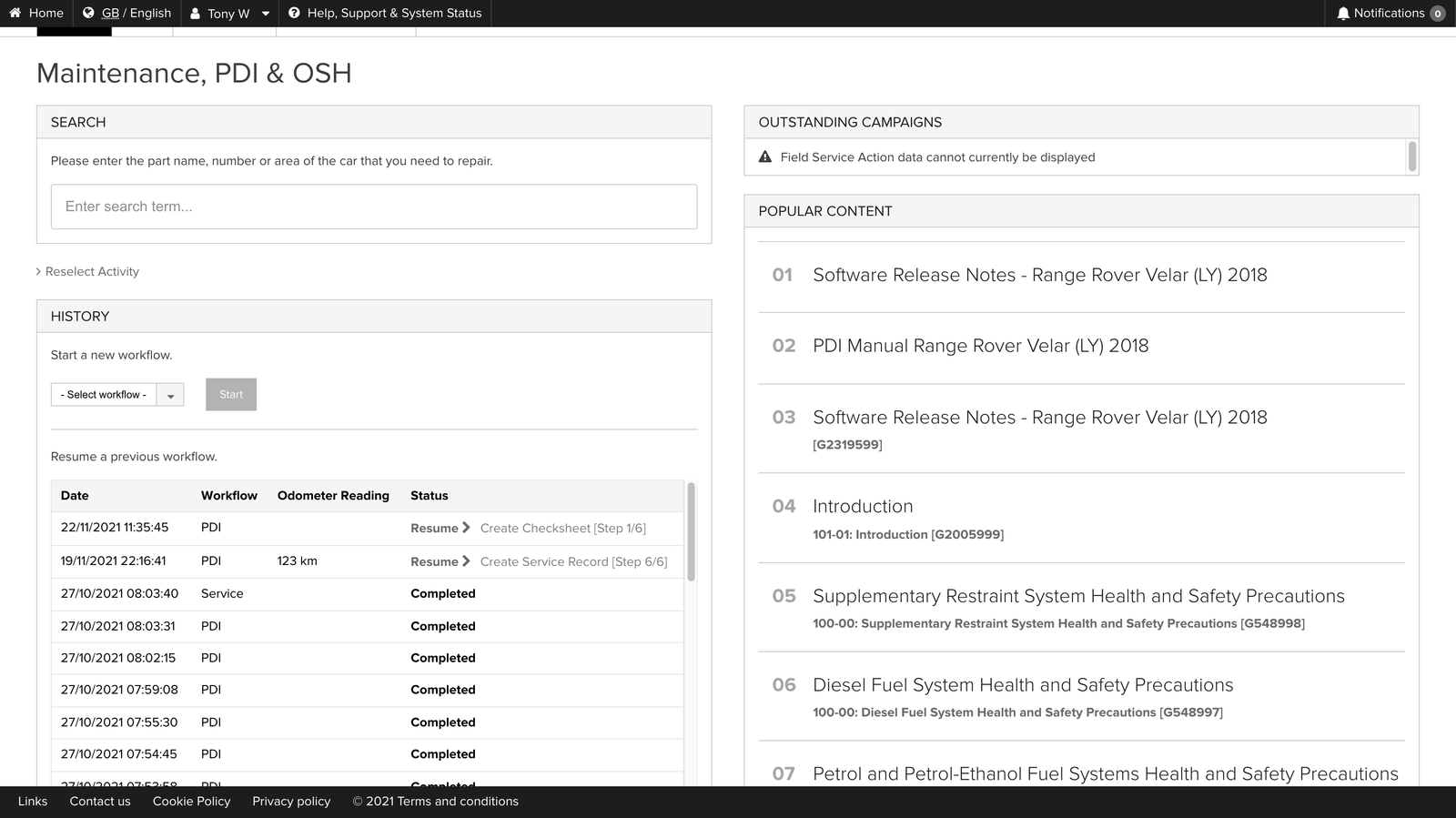
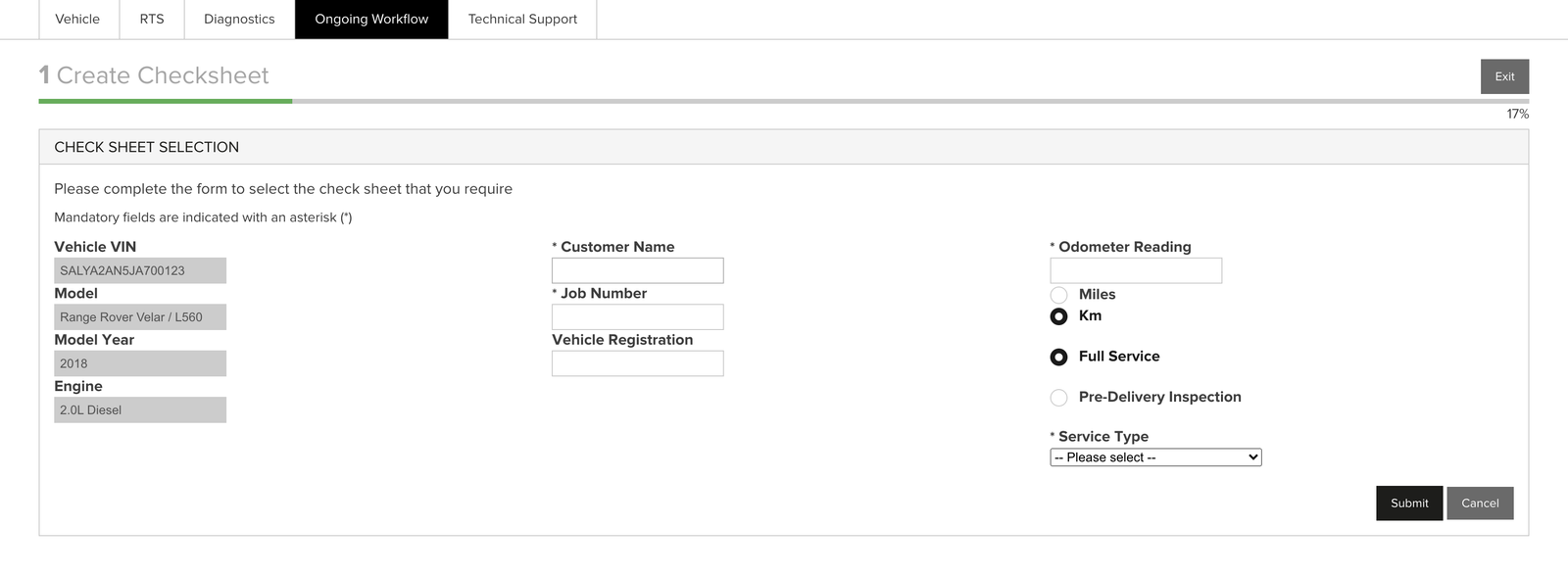
Below are actual screenshots from the TOPIx cloud platform showing the PDI & OSH workflow, vehicle selection, and module programming interfaces.
Compatibility Warning: You cannot use a DOIP VCI from other companies to connect to TOPIx cloud. The JLR TOPIx system performs hardware authentication checks that reject non-approved interfaces. JLR Coding supplies fully authenticated JLR DOIP VCI devices that pass all security checks.
Ready to Access Dealer-Level JLR Diagnostics?
Get your JLR TOPIx cloud subscription and JLR DOIP VCI interface from JLR Coding today. We provide instant license delivery, 24/7 technical support, and step-by-step setup assistance.